
Unlock Your PC’s Potential: How to Find Out What CPU You Have
Ever found yourself staring at your computer, needing to know its core specifications for an upgrade, a game, or just general curiosity? Perhaps you’re installing new software, troubleshooting an issue, or simply wondering what CPU do I have? You’re not alone. The Central Processing Unit (CPU) is often called the ‘brain’ of your computer, dictating much of its speed and capability. Knowing your CPU is crucial for making informed decisions about your system.
Fortunately, figuring out what processor your machine is running is straightforward, regardless of whether you’re on Windows, macOS, or Linux. This comprehensive guide will walk you through multiple easy methods to identify your CPU, explain why this information is valuable, and help you understand what those specs actually mean.
Why Knowing Your CPU Matters
Before we dive into the ‘how-to,’ let’s quickly understand the ‘why.’ Knowing your CPU isn’t just for tech enthusiasts; it’s practical information for every computer user.
Performance Assessment
Your CPU is a key factor in your computer’s overall speed and responsiveness. A powerful CPU handles complex tasks, multitasking, and resource-intensive applications with ease. Knowing your CPU helps you gauge what your system can realistically achieve.
Upgrades and Compatibility
Planning a hardware upgrade? Whether it’s a new graphics card or more RAM, your CPU often dictates compatibility and potential bottlenecks. For instance, a very old CPU might not fully utilize a brand-new, powerful GPU.
Gaming and Software Requirements
Every game and professional software application lists minimum and recommended system requirements, and the CPU is almost always at the top of that list. If you’re wondering if your machine can run the latest AAA game or a demanding video editing suite, you need to know what CPU do I have.
Troubleshooting and Support
When you encounter a technical issue and need to contact support, providing accurate system information, including your CPU model, helps technicians diagnose problems much faster.
How to Find What CPU You Have on Windows
Windows offers several simple ways to check your CPU details. Here are the most common methods:
Method 1: Using Task Manager (Windows 10/11)
- Right-click on an empty space on your Taskbar and select Task Manager, or press
Ctrl + Shift + Esc. - If Task Manager opens in a simplified view, click More details at the bottom left.
- Go to the Performance tab.
- Select CPU from the left-hand pane.
- At the top right, you’ll see your CPU’s full name and model (e.g., Intel Core i7-12700K). You’ll also see details like speed, cores, and threads.
Method 2: Using System Information (All Windows Versions)
This method provides a comprehensive overview of your system.
- Press
Win + Rto open the Run dialog. - Type
msinfo32and pressEnter. - In the System Information window, look for the Processor line. It will display your CPU’s exact model name, manufacturer, speed, and other details.
Method 3: Using "About Your PC" Settings (Windows 10/11)
A quick and easy way to find basic CPU information.
- Click the Start button, then open Settings (the gear icon).
- Go to System, then select About from the left-hand menu.
- Under the "Device specifications" section, you’ll see your Processor listed with its full model name.
Method 4: Using Command Prompt
For those who prefer a command-line approach.
- Type
cmdinto the Windows search bar and open Command Prompt. - Type the following command and press
Enter:wmic cpu get name - The command prompt will return a simple line displaying your CPU’s name.
How to Find What CPU You Have on macOS
Mac users have it even simpler with built-in tools:
Method 1: Using "About This Mac"
This is the quickest way to get an overview of your Mac’s specs.
- Click the Apple menu () in the top-left corner of your screen.
- Select About This Mac.
- In the "Overview" tab, you’ll find details about your chip (e.g., Apple M1, Intel Core i7), its model, and clock speed.
Method 2: Using System Information (More Detail)
- From the "About This Mac" window (as above), click the System Report… button.
- In the System Information window, navigate to Hardware in the sidebar.
- Click on Hardware Overview. You’ll see detailed processor information, including processor name, total number of cores, and more.
How to Find What CPU You Have on Linux
Linux offers powerful command-line tools to check your CPU details:
Method 1: Using the lscpu command
This command provides a well-formatted summary of your CPU architecture.
- Open a Terminal window (usually by pressing
Ctrl + Alt + T). - Type
lscpuand pressEnter. - You’ll see a detailed output including "Model name," "CPU(s)," "Core(s) per socket," "Thread(s) per core," and more.
Method 2: Using /proc/cpuinfo
This file contains raw, detailed CPU information directly from the kernel.
- Open a Terminal window.
- Type
cat /proc/cpuinfoand pressEnter. - This will output extensive details for each logical processor (core/thread). Look for the "model name" field for your CPU’s identity.
Method 3: Using hwinfo (If Installed)
hwinfo is a comprehensive hardware detection tool. If not installed, you might need to install it first (e.g., sudo apt install hwinfo on Debian/Ubuntu-based systems).
- Open a Terminal window.
- Type
hwinfo --cpuand pressEnter. - This command will give you very detailed information about your CPU.
When Software Isn’t Enough: Checking Your CPU Physically
In rare cases, you might need to physically inspect your CPU. This is usually only necessary if your system isn’t booting, or if you’re building a PC from scratch and need to verify the processor before installation.
Before You Open Your PC
Disclaimer: Opening your computer can void warranties and risks damaging components if not done carefully. If you’re unsure, consult a professional. Always power down and unplug your PC before opening it.
How to Physically Check
Once you’ve safely opened your computer case:
- On the CPU Cooler: Sometimes, basic CPU information (like "Intel Core i7" or "AMD Ryzen") is printed on the top of the CPU cooler.
- On the CPU Itself: If you remove the CPU cooler, the top of the CPU will have detailed model numbers and specifications printed on its Integrated Heat Spreader (IHS).
- Motherboard Documentation: If you know your motherboard model, its manual or online specifications will list compatible CPUs, which can help narrow down your search if the CPU is obscured.
Understanding Your CPU’s Specifications
Now that you know how to find what CPU do I have, let’s briefly decode some of the common terms you’ll encounter:
Processor Name and Model
This is the most important identifier (e.g., Intel Core i7-13700K, AMD Ryzen 7 7700X). The name indicates the brand and series, while the numbers often denote generation and performance tier.
Cores and Threads
- Cores: These are the actual processing units within the CPU. More cores generally mean better multitasking and performance in applications that can utilize multiple cores.
- Threads: Often, each physical core can handle two threads of instructions simultaneously (a technology called hyper-threading for Intel or SMT for AMD). More threads improve efficiency and performance in multi-threaded workloads.
Clock Speed (GHz)
Measured in Gigahertz (GHz), this indicates how many instruction cycles the CPU can complete per second. A higher clock speed usually means faster single-core performance, though modern CPUs are complex, and this isn’t the only factor.
Cache
Cache is a small, ultra-fast memory built directly into the CPU. It stores frequently accessed data, reducing the time the CPU spends waiting for information from slower RAM. More cache generally improves performance.
Conclusion
Whether you’re a gamer, a professional, or just a curious user, knowing your computer’s specifications, especially its CPU, is incredibly useful. You now have multiple straightforward methods to answer the question, "What CPU do I have?" across Windows, macOS, and Linux. This knowledge empowers you to make better decisions about software, upgrades, and overall system maintenance, ensuring you get the most out of your valuable machine.
Keep this guide handy, and you’ll never be left wondering about the brain of your PC again!
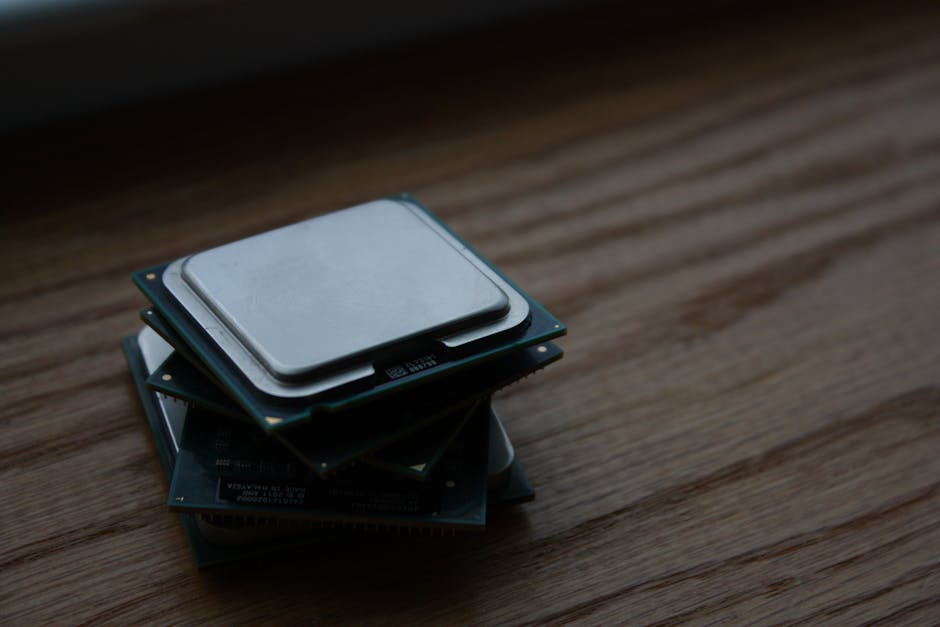
Photo by Shawn Stutzman on Pexels

Information Security Asia is the go-to website for the latest cybersecurity and tech news in various sectors. Our expert writers provide insights and analysis that you can trust, so you can stay ahead of the curve and protect your business. Whether you are a small business, an enterprise or even a government agency, we have the latest updates and advice for all aspects of cybersecurity.