
Unlock Your PC’s Potential: How to Find What CPUs Are Compatible With Your Motherboard
Thinking about upgrading your computer’s brain? A new CPU can dramatically boost performance, whether you’re gaming, video editing, or just multitasking. But before you dive into the exciting world of Intel Core i9s or AMD Ryzen 9s, there’s a critical first step: determining what CPUs are compatible with your motherboard. This isn’t just a suggestion; it’s a fundamental rule of PC building. Installing an incompatible CPU can lead to a non-booting system, bent pins, or even damage.
Don’t worry, this guide will walk you through everything you need to know. By the end, you’ll be confident in identifying your motherboard’s specifications and pinpointing the exact CPUs that will work with your system, helping you make an informed decision for your next upgrade.
Why CPU-Motherboard Compatibility is Non-Negotiable
Imagine trying to put a square peg in a round hole – that’s essentially what happens when you try to pair an incompatible CPU with a motherboard. These two components are the bedrock of your computer, and they need to speak the same language. Here’s why compatibility is paramount:
- Physical Fit (Socket Type): The CPU physically connects to the motherboard via a socket. Sockets have different pin layouts (LGA, PGA) and pin counts (LGA1700, AM5, LGA1200, AM4). A CPU designed for one socket simply won’t fit into another.
- Electrical Signals (Chipset): Beyond the physical fit, the motherboard’s chipset acts as a traffic controller, managing data flow between the CPU, memory, storage, and other peripherals. Each CPU generation works with specific chipsets, ensuring proper electrical communication.
- Software Support (BIOS/UEFI): Even if a CPU physically fits the socket and is supported by the chipset, the motherboard’s BIOS (Basic Input/Output System) or UEFI (Unified Extensible Firmware Interface) needs to have the necessary microcode to recognize and properly initialize the CPU. Newer CPUs often require a more recent BIOS version.
Neglecting these factors can lead to frustrating and costly mistakes. So, let’s get into the specifics of how to ensure your CPU and motherboard are a perfect match.
Key Factors Determining CPU Compatibility
To truly understand what CPUs are compatible with your motherboard, you need to grasp these three core concepts:
1. The CPU Socket Type
This is the most critical factor. The socket is the physical interface on the motherboard where the CPU sits. Different CPU manufacturers (Intel and AMD) and different generations use distinct socket types. For instance:
- Intel: Common sockets include LGA1700 (for 12th, 13th, 14th Gen Core processors), LGA1200 (for 10th and 11th Gen), LGA1151 (for 6th-9th Gen), and older ones like LGA2066 for high-end desktop (HEDT). LGA stands for Land Grid Array, where the pins are on the motherboard.
- AMD: Modern AMD CPUs primarily use AM5 (for Ryzen 7000 series and newer) and AM4 (for Ryzen 1000-5000 series). AMD historically used PGA (Pin Grid Array) where the pins are on the CPU, but AM5 is an LGA socket.
You cannot put an Intel CPU in an AMD socket, nor can you typically put a CPU from one Intel socket type (e.g., LGA1700) into another (e.g., LGA1200).
2. The Motherboard Chipset
While the socket defines the physical connection, the chipset on your motherboard dictates which specific CPUs within that socket family it can support, as well as features like PCIe lanes, USB ports, and SATA connections. Chipsets are often named with letters and numbers (e.g., Intel Z690, B550; AMD X670, B650). Newer chipsets are designed to work with newer CPU generations, even if they share the same socket.
3. BIOS/UEFI Version
This is where many people get tripped up. A motherboard might physically have the correct socket and a compatible chipset, but if it was manufactured before a certain CPU model was released, its BIOS/UEFI firmware won’t recognize the CPU. Motherboard manufacturers regularly release BIOS updates that add support for newer processors. You might need to update your motherboard’s BIOS before installing a newer CPU, often requiring an older, compatible CPU to do so (or a feature like BIOS Flashback/Q-Flash Plus).
Step-by-Step: How to Find What CPUs Are Compatible With Your Motherboard
Ready to figure out your upgrade path? Follow these steps to determine what CPUs are compatible with your motherboard:
Step 1: Identify Your Current Motherboard Model
You need to know the exact make and model of your motherboard. There are several ways to do this:
- Using Software (Recommended):
- CPU-Z: A free, lightweight utility that provides detailed information about your CPU, mainboard (motherboard), memory, and graphics card. Look under the ‘Mainboard’ tab for ‘Manufacturer’ and ‘Model’.
- HWInfo: Another excellent utility offering comprehensive system information.
- Speccy: Provides an easy-to-read summary of your PC’s hardware.
- Windows System Information:
- Press
Windows Key + R, typemsinfo32, and hit Enter. - Look for ‘BaseBoard Manufacturer’, ‘BaseBoard Product’, and ‘BaseBoard Version’.
- Press
- Physical Inspection:
- If your PC is a pre-built system (Dell, HP, etc.), the motherboard model might be listed on a sticker inside the case or in the system’s documentation.
- For custom builds, the model number is usually printed clearly on the motherboard itself, often between the PCIe slots, near the RAM slots, or around the CPU socket. You might need to remove your graphics card or CPU cooler to see it.
Step 2: Visit Your Motherboard Manufacturer’s Website
Once you have the exact model number (e.g., ASUS ROG STRIX B650-A GAMING WIFI, MSI MAG Z790 TOMAHAWK WIFI), head straight to the manufacturer’s official website (e.g., ASUS, MSI, Gigabyte, ASRock, Biostar).
- Navigate to the ‘Support’ section.
- Use the search bar to find your specific motherboard model.
- Look for a section typically labeled ‘CPU Support List’, ‘Compatibility’, ‘QVL (Qualified Vendor List)’, or similar.
- This list will detail every single CPU that is officially compatible with your motherboard, often including the minimum BIOS version required for each CPU.
Pro Tip: Pay close attention to the required BIOS version. If you plan to install a CPU that came out after your motherboard was manufactured, you’ll likely need to update your BIOS. The manufacturer’s website will also provide instructions and the necessary files for BIOS updates.
Step 3: Consider Online Compatibility Tools (Optional, but Helpful)
Tools like PCPartPicker.com are fantastic for planning builds and upgrades. You can select your motherboard, and it will filter out only compatible CPUs. While incredibly useful, always cross-reference this information with the official manufacturer’s compatibility list, as the manufacturer’s site is the definitive source.
Common Pitfalls and Pro Tips for Your CPU Upgrade
- Don’t Assume: Just because a CPU fits the same socket (e.g., AM4) doesn’t mean your specific motherboard chipset supports it without a BIOS update. Always check the official list.
- BIOS Updates are Crucial: Seriously, this is the most common reason for new CPU installations to fail. Research your motherboard’s BIOS Flashback (or similar) feature. This allows you to update the BIOS without a compatible CPU installed, using just a USB stick and power.
- Power Delivery (VRMs): While often overlooked by beginners, some high-end CPUs draw a lot of power. Older or budget motherboards might have weaker VRMs (Voltage Regulator Modules) that can struggle to provide stable power to a top-tier CPU, potentially leading to throttling or instability. For serious upgrades, check reviews of your motherboard’s VRM performance.
- Cooling: A more powerful CPU generates more heat. Ensure your current CPU cooler can handle the TDP (Thermal Design Power) of your new processor. If not, budget for a new cooler.
- Budget and Performance Goals: Define what you want to achieve with the upgrade. Is it for gaming, productivity, or just extending the life of your current system? This will help you narrow down the best compatible CPU within your budget.
Conclusion
Successfully determining what CPUs are compatible with your motherboard is the cornerstone of any successful PC upgrade or build. By carefully identifying your motherboard, consulting the manufacturer’s official support lists, and understanding the interplay between socket type, chipset, and BIOS versions, you can avoid common pitfalls and ensure a smooth, powerful upgrade.
Take your time with each step, double-check your findings, and you’ll be well on your way to unlocking your PC’s full potential with its new brain. Happy upgrading!
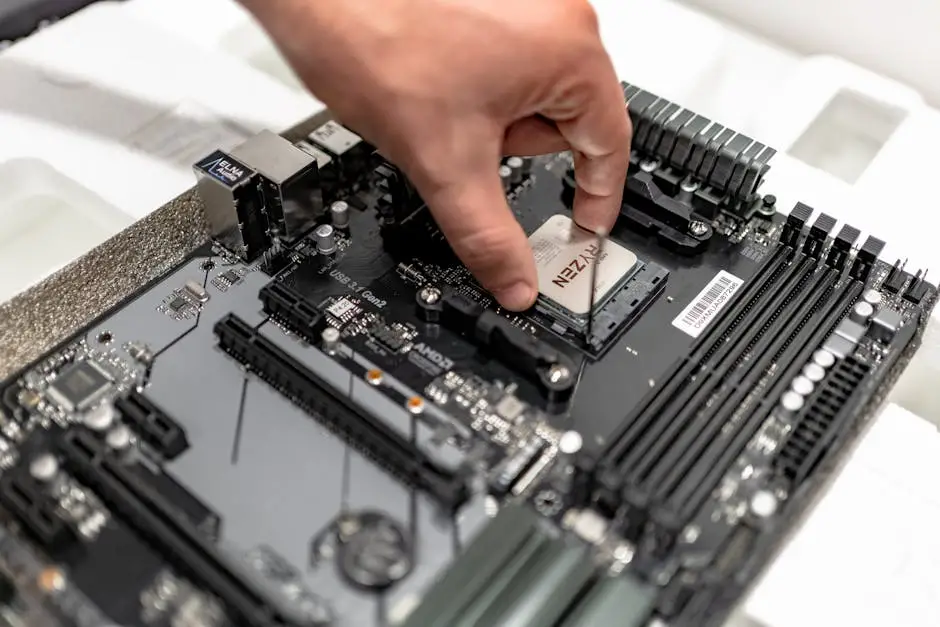
Photo by IT services EU on Pexels

Information Security Asia is the go-to website for the latest cybersecurity and tech news in various sectors. Our expert writers provide insights and analysis that you can trust, so you can stay ahead of the curve and protect your business. Whether you are a small business, an enterprise or even a government agency, we have the latest updates and advice for all aspects of cybersecurity.