Short answer: check who really sent the message, where the links really go, and whether it is pushing you to act fast or to hand over a password, code or payment. If any of those look wrong, do not click. Open the company’s website yourself or call a number you already trust.
Last reviewed: November 2026.
What phishing tries to do
Phishing messages impersonate someone you trust, such as your bank, a delivery company, your employer or a colleague, to get you to take one of three actions: type your login details into a fake page, open a file that installs malware, or send money or sensitive information. The wording changes constantly, but the aim and the techniques stay recognisable.
What has changed
You may have learned to look for bad spelling and clumsy grammar. That is no longer reliable, because scammers can now produce fluent, well-formatted messages in any language, including tailored ones that mention your name, employer or recent activity. Treat polished writing as neutral, not as a sign of safety. Focus instead on the checks that are hard to fake: the real sender address, the real link destination, and what the message wants you to do.
The nine checks
- The sender address does not match the organisation. Look at the actual address, not only the display name. A bank does not write from a free webmail account.
- The domain is almost right. Look for swapped or added letters, extra words such as secure or support, a hyphenated version of a brand name, or an unusual ending.
- The link goes somewhere else. Hover over a link, or press and hold on a phone, to see the real destination. Be careful with shortened links and with QR codes in unexpected emails or letters, which hide the address.
- Urgency or threats. Deadlines such as your account will close in 24 hours exist to stop you thinking.
- A request for credentials, codes or payment. Real companies rarely ask you to confirm a password, card number or one-time code by email, text or phone.
- An unexpected attachment. Invoices, shipping notices, voicemail files and shared documents you were not expecting are common carriers for malware. Be most suspicious of compressed files and Office documents that ask you to enable macros or content.
- The greeting or context is off. A generic greeting from a company that normally uses your name, a parcel notice when you ordered nothing, or a document share from someone you do not know.
- It asks you to bypass normal process. A new bank account for an invoice, gift cards, secrecy, or an executive who suddenly wants a favour. These are typical of business email compromise.
- It feels slightly wrong. If something seems off, pause. A short delay costs you little, and a real sender can wait.
Verify without clicking
If a message might be genuine, do not use any link or phone number inside it. Type the company’s address into your browser or use a saved bookmark, open the official app, or call the number printed on your card, bill or the official website. If it appears to come from a colleague or manager, check by phone or a separate chat. Many fake pages today even display the HTTPS padlock, so read our explanation of what the padlock does and does not prove.
Common types worth knowing
- Credential phishing: a fake login page for email, banking or a work system.
- Malware delivery: an attachment or download that installs a stealer or ransomware.
- Business email compromise: a message that imitates a boss or supplier and asks for a transfer or changed bank details.
- Phishing by text and phone: see our guides to text message scams and phone scams and pretexting.
If you clicked or opened something
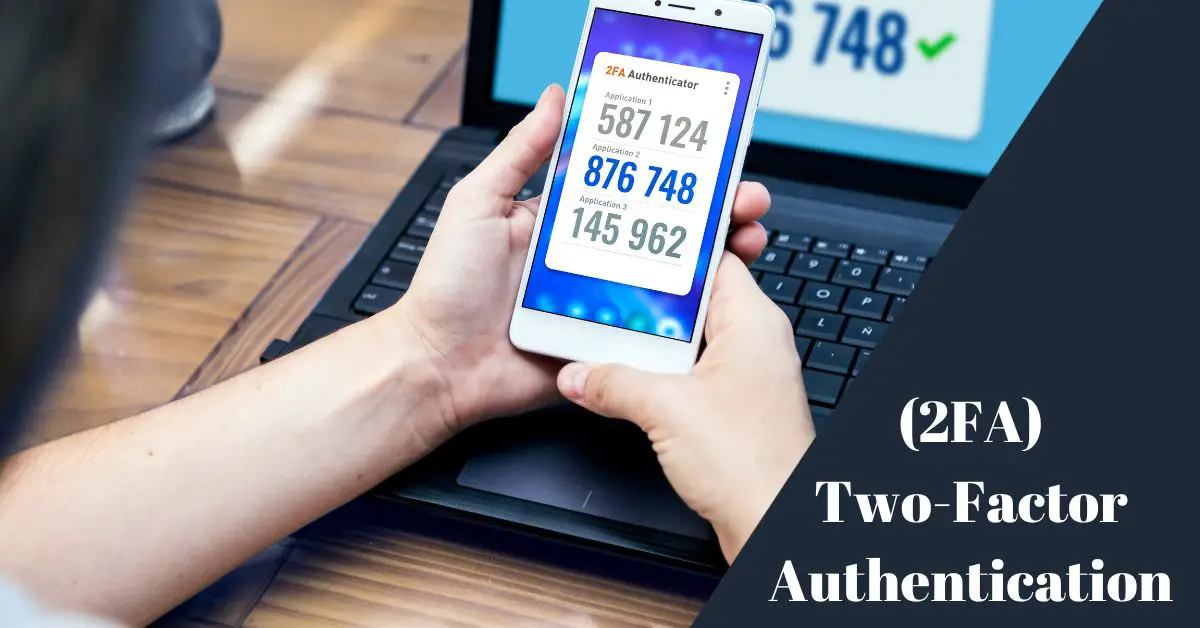
- Entered a password: change it immediately on the real site and anywhere else you used it, and turn on two-factor authentication.
- Entered card details: call your bank to block and replace the card.
- Opened an attachment or installed something: disconnect from the network, run a full security scan, and tell your IT contact if it is a work device. Our Windows malware removal guide shows what to do.
- Report it: use the report phishing button in your mail client, and forward scam emails to [email protected]. In the United States you can also report at reportfraud.ftc.gov.
- Tell someone. Quick reporting protects others and costs nothing.
Frequently asked questions
Can I be infected just by opening an email?
It is uncommon with modern mail programs. The usual danger comes from clicking links, opening attachments or approving prompts. Still, avoid opening unexpected messages and keep your software updated.
What if the email appears to come from a friend?
Their account may have been hacked, or the address may be spoofed. Check with them through another channel before opening anything unexpected.
Does a padlock in the browser mean the site is safe?
No. It only means the connection is encrypted. Criminals use HTTPS too.
Sources and further reading
- Anti-Phishing Working Group: apwg.org
- Federal Trade Commission, reporting scams: reportfraud.ftc.gov