
Short answer: iPhones are hard to infect with ordinary malware, but targeted spyware and commercial stalkerware do exist. The reliable steps are: update iOS, review which apps have sensitive permissions, remove unknown profiles and apps, check Apple ID devices and settings, change your Apple ID password from a clean device, and if signs persist, back up and restore the phone. People at high risk can also turn on Lockdown Mode.
What “spyware on iPhone” can mean
There are three different situations that people describe the same way:
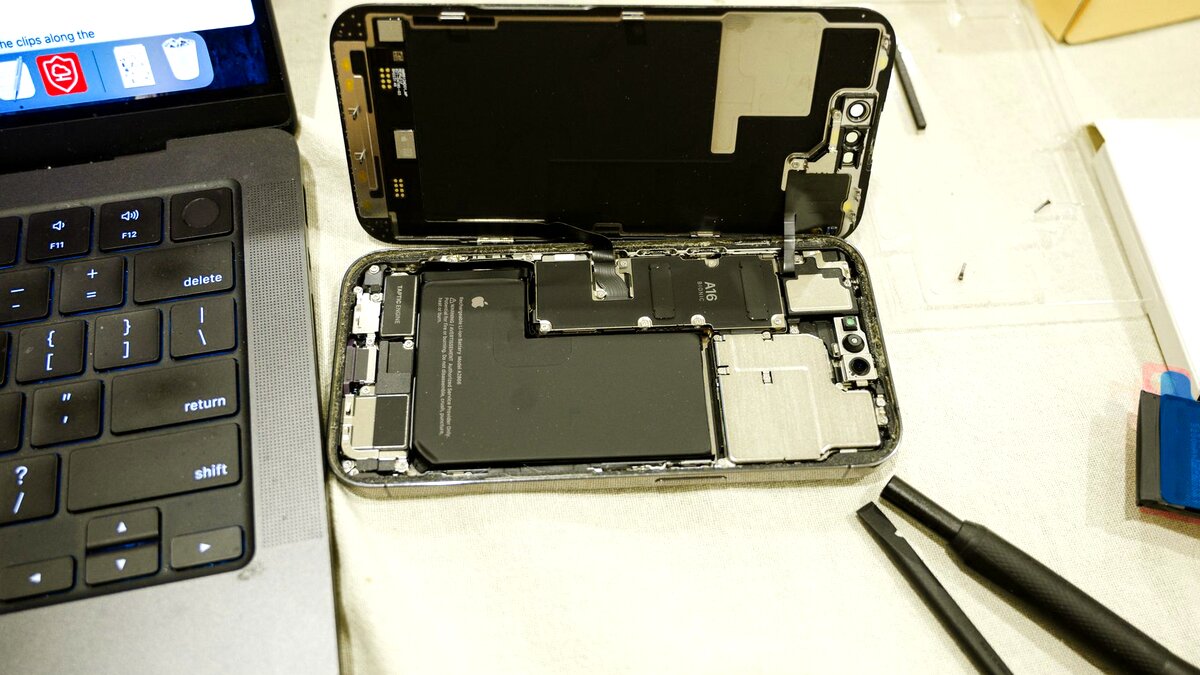
- Stalkerware or monitoring apps installed by someone with access to your phone or Apple ID, often a partner or acquaintance.
- Account-based snooping: someone knows your Apple ID password and reads iCloud data, messages or location without installing anything on the phone.
- Advanced mercenary spyware used against a small number of targeted people such as journalists and activists. It is rare and usually needs specialist help.
Most ordinary users are in the first or second group, so the checks below focus there.
Signs worth checking
- Battery drains faster than normal or the phone runs hot while idle.
- Unexpected data use or apps you do not remember installing.
- An unknown configuration profile or device management entry.
- The orange or green indicator dots, which show microphone or camera use, appear when you are not using those features.
- Someone seems to know things you have only said or done privately.
None of these is proof. Battery and heat have many ordinary causes. Look for several signs plus something you cannot explain.
Step 1: Update iOS
Install the latest iOS from Settings, General, Software Update. Updates patch vulnerabilities that spyware uses.
Step 2: Review apps and permissions
- Scroll through your app library and remove any app you do not recognise.
- Go to Settings, Privacy and Security and review Location Services, Microphone, Camera, Photos, Contacts and Accessibility-related items. Look for apps with access they do not need.
- Check App Privacy Report if enabled, which shows how apps accessed your data and which domains they contacted.
Step 3: Check profiles and device management
Go to Settings, General, VPN and Device Management. A configuration profile or management entry you did not install is a red flag, because profiles can change network behaviour and security settings. On a personal phone, if you do not know what it is, you can remove it. If the phone belongs to a school or employer, ask them first.
Step 4: Check your Apple ID
| Check | Where | Concern |
|---|---|---|
| Signed-in devices | Settings, your name, scroll to device list | Devices you do not own |
| Password and security | Settings, your name, Sign-In and Security | Weak or reused password; no two-factor authentication |
| Shared locations and Find My | Find My app, People | Someone you did not choose can see your location |
| Passkeys, app-specific passwords | Sign-In and Security | Entries you do not recognise |
Use Safety Check (Settings, Privacy and Security, Safety Check) if you are worried about someone with whom you have shared access. It lets you review and stop sharing with people and apps, and Apple publishes guidance for personal safety situations. If you may be in danger, plan carefully, since removing monitoring could alert the person.

Step 5: Change passwords from a clean device
If you suspect Apple ID compromise, change the password on a device you trust, turn on two-factor authentication and sign out other devices. Then change the passwords for email and other important accounts.
Step 6: Back up and restore if needed
If you still have strong signs of compromise, back up photos and documents (not apps), erase the iPhone from Settings, General, Transfer or Reset iPhone, and set it up as new rather than restoring a full backup that may contain the problem. Reinstall apps from the App Store.
Lockdown Mode
Lockdown Mode is an optional extreme protection that restricts some features, such as certain message attachments, web technologies and incoming invitations. Apple says it is meant for the small number of people who may be targeted by sophisticated attacks. It reduces convenience, so it suits only people with that risk.
About jailbreaking
Jailbroken phones lose many protections and are easier to monitor. If a phone you bought used or received from someone is jailbroken, restoring it through Apple’s recovery process removes the jailbreak.
Frequently asked questions
Can someone read my iPhone just by having my number?
Ordinary users are very unlikely to be attacked that way. Targeted zero-click exploits exist but are used against a few high-profile people.
Will an antivirus app find it?
iOS limits what apps can inspect, so antivirus apps cannot scan the system like they do on a computer. Updates, permission review and a restore are more effective.
Related: remove spyware from Mac and Apple ID locked for security reasons.