
Short answer: adware on Android is usually an app you installed that shows ads outside itself, on your home screen, lock screen or over other apps. To find it, tap the Recent apps button when an ad appears to see which app it belongs to, check recently installed apps, and look for apps with “Display over other apps” permission. Uninstall the culprit (removing device admin rights first if needed), run a Google Play Protect scan, and remove spam notification permissions from your browser. Safe Mode helps if the app hides or resists removal.
Android adware often hides inside free games, flashlight apps, QR scanners, wallpaper apps, “phone cleaners” and battery savers, sometimes even on Google Play before being removed. Some apps behave normally for days, then start showing intrusive full-screen ads, open web pages on their own, or hide their icons so you cannot easily find them. Security firms regularly report campaigns of this kind affecting millions of installs.
Signs of Android adware
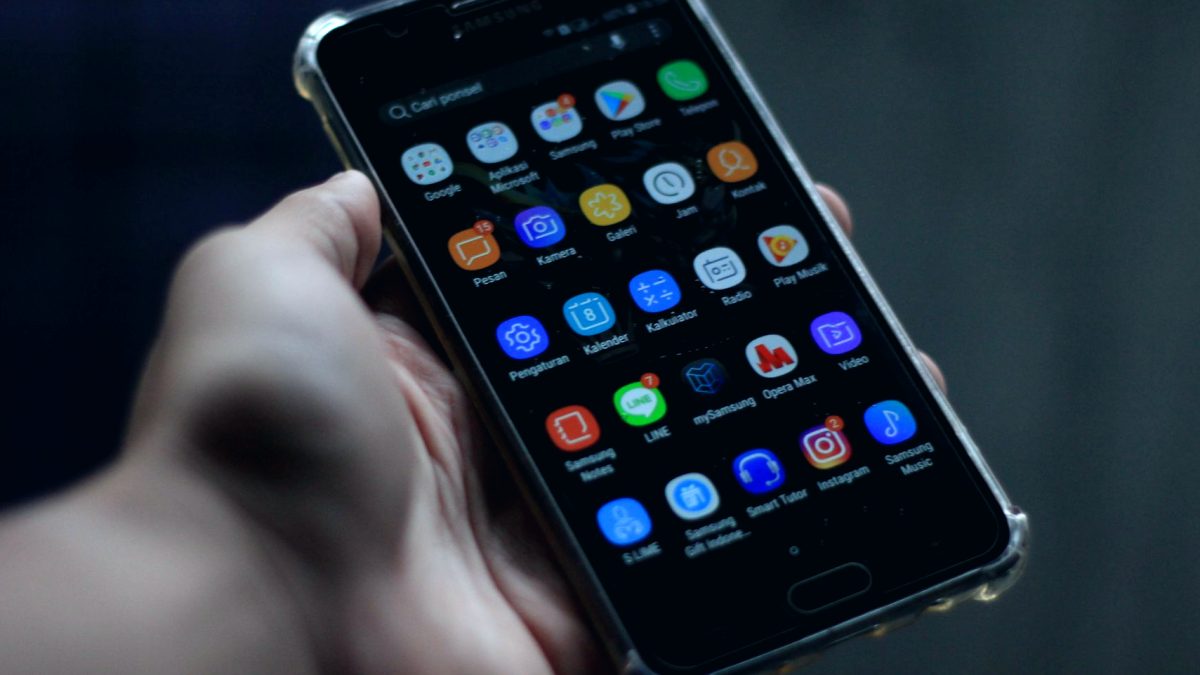
Full-screen ads appear when you unlock your phone, open other apps or press the home button; ads appear on the lock screen; your browser opens to ad or scam pages by itself; notifications advertise prizes or “virus detected” warnings; new shortcuts appear on your home screen; or battery and data use rise. Note that notification spam from websites is different: it comes from your browser, not an installed app (see Step 6).
Step 1: Identify the app behind the ad
When a full-screen ad appears, open the Recent apps view (square button or swipe up and hold). The ad’s app is often shown there with its name or icon. You can also long-press a notification and tap the settings icon to see which app sent it.
Step 2: Check recently installed apps
Open the Play Store, tap your profile icon > Manage apps & device > Manage and sort by recently updated or installed. Alternatively go to Settings > Apps > See all apps. Look for apps installed around when the ads began, apps you do not recognise, and generic utilities you do not use. Apps with hidden icons still appear in this list.
Step 3: Check special permissions
Go to Settings > Apps > Special app access (the path varies by brand). Review Display over other apps (used to show ads on top of other apps), Device admin apps (can block uninstalling), Install unknown apps and Notification access. Revoke permissions for apps that do not need them.
Step 4: Uninstall the adware
Tap the app in Settings > Apps and choose Uninstall. If the button is greyed out, deactivate it under Device admin apps first. If the app keeps reopening Settings or blocks you, restart in Safe Mode (press and hold the power button, then press and hold Power off until Safe mode appears; steps vary by manufacturer), which disables third-party apps so you can uninstall it.
Step 5: Scan with Play Protect
Open the Play Store > profile icon > Play Protect > Scan. Remove anything flagged. Keep Play Protect turned on.
Step 6: Clean browser notifications and data
If ads appear as notifications from Chrome or another browser, open the browser’s settings > Site settings > Notifications and remove sites you did not intend to allow. Clearing browsing data and resetting site permissions also helps. Some ad “pop-ups” are simply aggressive website ads, which close when you leave the site.
Step 7: If nothing works
Back up your photos and important data, then factory reset the phone (Settings > System > Reset options > Erase all data). Reinstall apps only from Google Play and only those you actually need.
Prevent adware
Install apps from Google Play and check the developer, reviews (especially recent negative ones) and requested permissions. Avoid apps promising to clean, speed up or cool your phone; Android manages this itself. Keep “Install unknown apps” disabled for browsers and messaging apps. Do not allow notifications from websites unless you trust them.
Frequently asked questions
Is Android adware dangerous?
Mostly it is annoying and drains battery, but some adware leads to scam sites or installs other malware.
Why can’t I find the app showing ads?
It may hide its icon or use a generic name. Check Settings > Apps and the Recent apps view when an ad appears.
Do I need an antivirus app to remove adware?
Usually not. Play Protect and manual removal work for most cases.
Can adware come from Google Play?
Occasionally. Google removes such apps when discovered, so check reviews and permissions carefully.
Related: remove spyware from Android, Play Protect warnings, install unknown apps permission.