
Short answer: you can remove the WordPress version number from your site’s HTML generator meta tag and RSS feeds with a small code snippet using remove_action('wp_head', 'wp_generator') and the the_generator filter, and optionally strip ?ver= query strings from CSS and JavaScript URLs. Also delete readme.html from the site root. This hides an easy clue from automated scanners, but it is minor hardening: the real protection is keeping WordPress, plugins and themes updated.
By default, WordPress adds a line like <meta name="generator" content="WordPress 6.x" /> to every page and includes the version in RSS feeds. Attackers’ scanners can read it to guess whether a site runs an outdated, vulnerable version. Hiding it removes one signal, though skilled attackers can usually still fingerprint the version from other files.
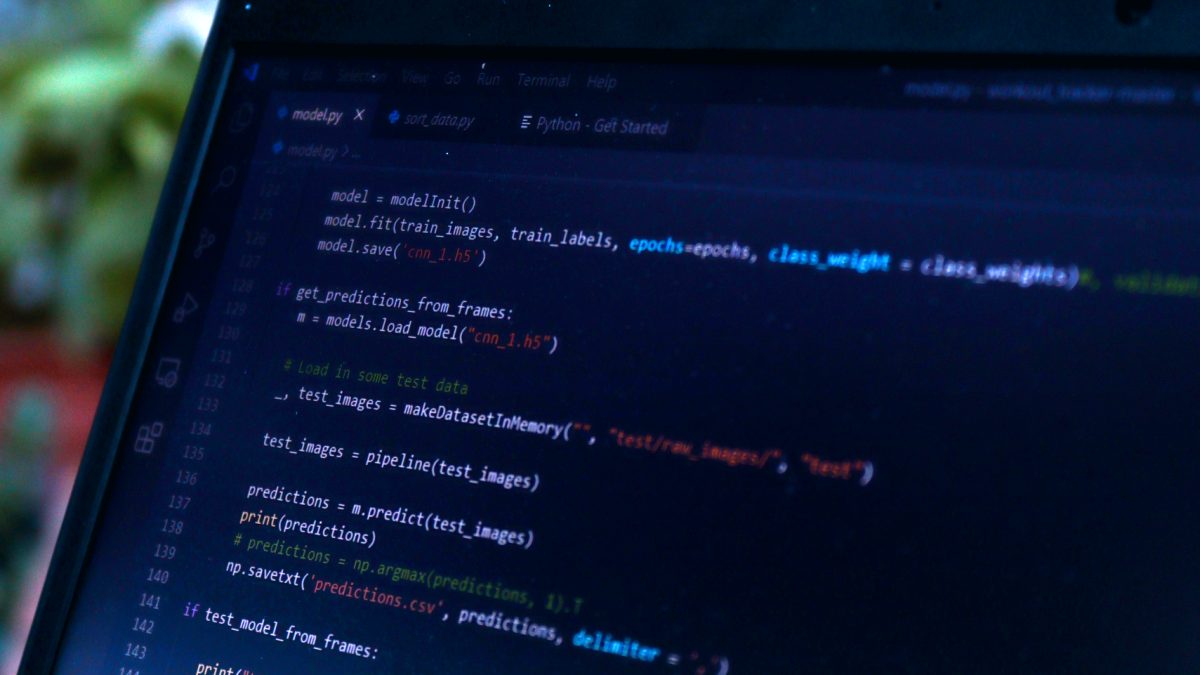
Where WordPress reveals its version
The version can appear in the generator meta tag in the page head, in RSS and Atom feeds, in ?ver= query strings appended to scripts and stylesheets loaded by core, in the readme.html file in the site root, and indirectly through the content of core files that change between versions. Plugins and themes also often reveal their own versions in asset URLs and readme files, which is arguably more useful to attackers because plugins are where most vulnerabilities live.
Remove the generator tag and feed version
Add this to a small site-specific plugin or your child theme’s functions.php (a site-specific plugin is better, because it survives theme changes):
remove_action( 'wp_head', 'wp_generator' );
add_filter( 'the_generator', '__return_empty_string' );
The first line stops WordPress outputting the meta tag in the page head; the filter blanks the generator in feeds and other places that use it. Many security and SEO plugins include a setting that does the same.
Strip version query strings (optional)
To remove ?ver= from core scripts and styles, you can filter style_loader_src and script_loader_src to strip the parameter. Be aware that version strings are useful for cache busting: they force browsers to load updated files after an update. If you remove them, make sure your caching or CDN setup still serves fresh files after updates. A gentler approach is to only remove the parameter when it equals the WordPress version.
Remove readme.html and license.txt
Delete readme.html from the WordPress root; it contains version information and is not needed. Note that WordPress may restore it during core updates, so check after updating, or block access with a server rule. license.txt does not reveal the version but some owners remove it too.

What hiding the version does not do
It does not patch vulnerabilities. Many automated attacks do not check versions at all; they simply try exploits against every WordPress site they find. Attackers can also identify versions from other fingerprints, such as file hashes. Treat version hiding as “noise reduction”, similar to changing the login URL, not as a security control.
Priorities that matter more
If you are spending time on WordPress security, these steps have far more impact: keep core, plugins and themes updated (enable automatic updates where possible); remove unused plugins and themes; use two-factor authentication for all admin accounts; keep off-site backups; disable file editing in the dashboard; and monitor for file changes. See our WordPress security checklist.
How attackers actually find vulnerable WordPress sites
It helps to understand how real attacks work. Most attacks against WordPress are automated and opportunistic. When a vulnerability in a popular plugin is disclosed, attackers write a script that requests a specific file or endpoint belonging to that plugin on millions of websites. If the request succeeds, they try the exploit. In this process, the WordPress core version is often irrelevant: what matters is whether the vulnerable plugin is installed and unpatched. Scanners also check for plugin readme files and asset paths, which reveal plugin versions even when the core version is hidden.
This is why removing unused plugins, keeping the remaining ones updated and enabling automatic updates do far more for your security than any amount of version hiding. Version hiding can still be part of a tidy configuration, but it should never give you a false sense of safety.
Quick checklist
- Remove the generator tag and feed version with the snippet above or a trusted plugin setting.
- Delete
readme.htmland recheck after core updates. - Decide whether removing
?ver=query strings is worth the caching trade-off. - Spend the rest of your time on updates, backups, two-factor authentication and monitoring.
Frequently asked questions
Does hiding the WordPress version improve SEO?
No. Search engines do not care about the generator tag.
Will removing ?ver= break my site?
Usually not, but browsers may keep old cached files after updates. Test after updating.
Is it better to use a plugin or code?
If you already run a security plugin with this option, use it. Otherwise, a few lines in a site-specific plugin avoid adding another dependency.
Can attackers still find my version?
Often yes, through other fingerprints. That is why updates are the real defence.